In this guideJump to a section
- First separate coverage from internet service
- Map the building before comparing products
- Choose the backhaul first
- Compare capabilities, not marketing labels
- Start with the fewest nodes
- Secure the network as part of installation
- Plan for a power or provider outage
- A practical acceptance test
- Primary sources
- Measure the weakest room before adding a node
INFO
The right mesh Wi-Fi system is the one that solves measured dead zones in the actual home and remains supportable. Floor area alone cannot choose it. Map walls and floors, test the current router, decide whether Ethernet backhaul is possible, confirm security-update support, and power only the nodes that serve important areas during an outage.
A larger home does not automatically need the largest mesh package. One poorly placed router, an obsolete access point, or a weak provider connection can look like a coverage problem. Adding too many nodes can create more interference, more power draw, and more devices to maintain.
Use this guide as a repeatable selection method. Models, subscriptions, firmware support, radio rules, and cloud features change, so verify each final capability in current documentation for the exact system.
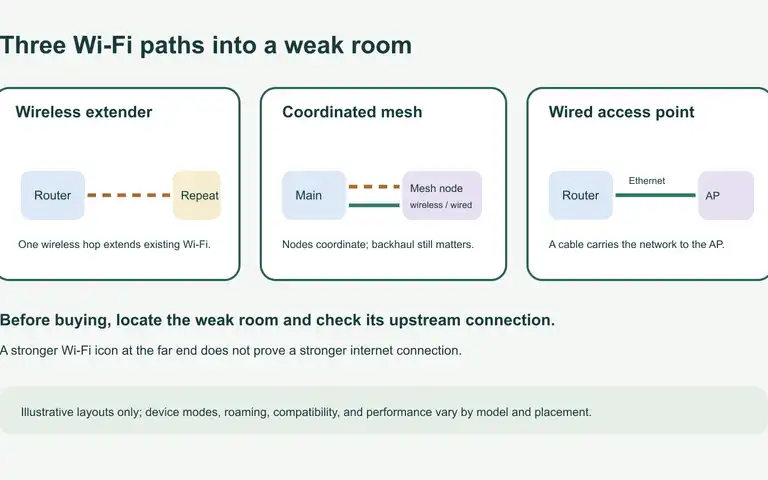
If you have not yet chosen the network architecture, compare a Wi-Fi extender, mesh and wired access point. That earlier decision can reveal whether a whole mesh system is the right next step.
First separate coverage from internet service
Run a wired speed test at the provider gateway if the equipment and service allow it, then compare Wi-Fi behavior in the rooms that matter. If the wired connection is also slow or unavailable, more mesh nodes will not repair the provider path.
Record each test in the same way:
- Room and floor
- Device used
- Distance and major barriers to the nearest node
- Download, upload, latency, and stability over several minutes
- Whether voice, video, alerts, or the required work task succeeds
- Time of day and whether other household traffic was active
Use the same device and test endpoint for before-and-after comparisons. A single peak speed is less useful than a stable result that supports the actual task.
Map the building before comparing products
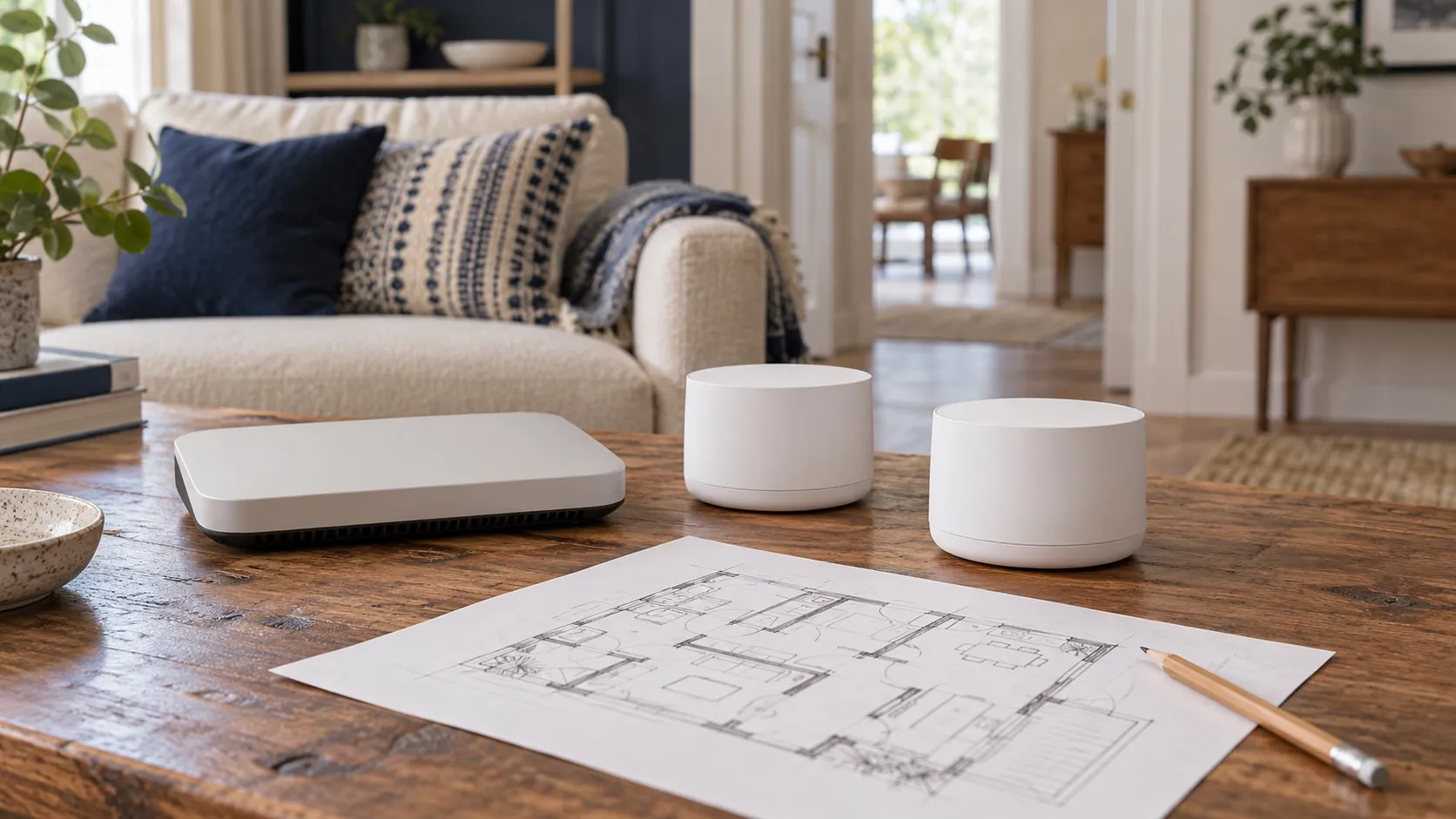
Sketch the floor plan and mark:
- Provider entry point and current gateway
- Ethernet and coax locations
- Thick masonry, concrete, metal, mirrors, utility rooms, and multiple floors
- Rooms where reliable coverage has a clear job
- Outdoor areas that genuinely need service
- Safe, open, powered locations for nodes
- Equipment that cannot move because of accessibility or wiring needs
Do not place a node in an attic, cabinet, damp location, exit path, or other environment outside its operating instructions. Avoid hiding it behind large metal objects. A node needs a strong connection back to the network, so placing it deep inside a dead zone rarely fixes the underlying path.
Choose the backhaul first
Backhaul is the connection between the main gateway and the other mesh nodes.
Mesh backhaul choices
| Backhaul | Often useful when | What to verify |
|---|---|---|
| Ethernet | Existing cable reaches the floors or distant rooms that need stable service. | Each node supports wired backhaul, port speed, switch compatibility, cable condition, and a safe cable route. |
| Dedicated wireless band | Cable is not practical and nodes have a reasonably clear radio path. | How the exact system uses that band, how clients share capacity, and whether walls or floors block the path. |
| Shared wireless band | Needs are modest and node spacing is short. | Performance over multiple hops under real household traffic, not only the package speed class. |
Wired backhaul removes the wireless node-to-node hop from the most important paths, but it must be installed safely. Do not route ordinary cable through walls, ducts, plenums, or outdoor areas unless the cable and installation meet the applicable requirements. Ask a qualified low-voltage professional when the route is uncertain.
For an example scoped to TP-Link’s Deco mesh family, its placement guide recommends checking a satellite’s signal in the Deco app and describes Ethernet backhaul as a more stable and faster connection than wireless backhaul. Its wiring instructions differ by Router or Access Point mode. Treat these as Deco guidance; verify placement, signal indicators, and wiring rules in the exact system’s current manual.
If the goal is an automation that continues without internet, a new Wi-Fi mesh may not solve the actual dependency. Use the local smart-home hub buying checklist to verify where the rule executes and which controller or bridge it needs before comparing routers.
Compare capabilities, not marketing labels
Use a worksheet for the exact models under consideration:
| Decision | Minimum answer to document |
|---|---|
| Evidence date | When were the manual, support status, subscription terms, and privacy notice checked? |
| Backhaul | Which ports and wireless bands can connect nodes? |
| Update support | Is the model still receiving security updates, and how are they installed? |
| Account security | Does administration support a strong unique password and multifactor authentication where available? |
| Local operation | What still works if the vendor cloud or internet path is unavailable? |
| Network separation | Is there a guest or IoT network that fits the household’s devices? |
| Accessibility | Can required alerts, controls, and status information be used by the household? |
| Ports | Are there enough suitable Ethernet ports for wired devices and backhaul? |
| Privacy | What diagnostic, device, and usage data leaves the home, and what controls exist? |
| Subscription | Which features require an ongoing service, and what happens when it ends? |
| Power | What does each gateway, node, switch, and provider box draw? |
| Recovery | Can the configuration be restored, and is the account-recovery process documented? |
Avoid choosing solely by advertised square footage, aggregate wireless speed, or the number of antennas. Those figures do not describe the home’s materials, interference, client devices, node placement, provider service, or software support.
If the remaining problem is onboarding a device that requires 2.4 GHz on a combined-band network, use the 2.4 GHz smart-home Wi-Fi setup guide to check the device and gateway manuals before changing network settings.
Start with the fewest nodes
Place the main gateway in an open, central location when the provider connection and household layout permit. Add one node between the gateway and a problem area, not at the far edge where it receives a weak signal. Test again before adding another.
More nodes are not automatically better. Each wireless node needs usable backhaul and adds another radio, power adapter, update surface, and possible failure point. If one important room still fails, try a safer placement, wired backhaul, or a purpose-built access point before buying an oversized bundle.
Keep the same test method and note whether the actual task improved. A video call that stays stable can be a better outcome than a higher peak result that drops repeatedly.
Before assuming a new router or mesh node will fix a smart switch or sensor, check which radio and controller it actually uses. The Matter vs Thread vs Zigbee vs Z-Wave compatibility guide separates application standards, Thread border routers, local hubs and bridging. Wi-Fi coverage improvements do not automatically repair an incompatible Zigbee or Z-Wave device.
Secure the network as part of installation
During setup:
- Change default administrative credentials.
- Use a strong unique account password and a password manager.
- Enable multifactor authentication when the account supports it.
- Install current firmware and enable appropriate automatic updates.
- Use the strongest compatible Wi-Fi security mode supported by the household’s devices.
- Remove unknown devices and retire unsupported network equipment.
- Keep recovery codes and setup details in a secure offline location.
- Put guests and less-trusted connected devices on a separate network when the system supports it and that design fits the household.
CISA’s archived Secure Our World guidance emphasizes strong passwords, multifactor authentication, recognizing phishing, and software updates. Apply those basics to the vendor account and the phones used to administer the network, not only to the router.
Before factory-resetting equipment, confirm that someone can restore the provider settings, mesh configuration, accessibility needs, and account access.
Plan for a power or provider outage
Mesh Wi-Fi does not create internet service. The provider path, optical network terminal or modem, main gateway, switches, and required nodes all need to work.
Inventory the complete path:
provider equipment + gateway + required switch + required nodes = network load
Use label or measured watts for every component. Multiply the total watts by hours needed, then account for usable capacity, conversion loss, and reserve. The Battery Runtime Calculator structures that estimate. The electronics backup power guide explains how to preserve phone power when the provider path is unavailable.
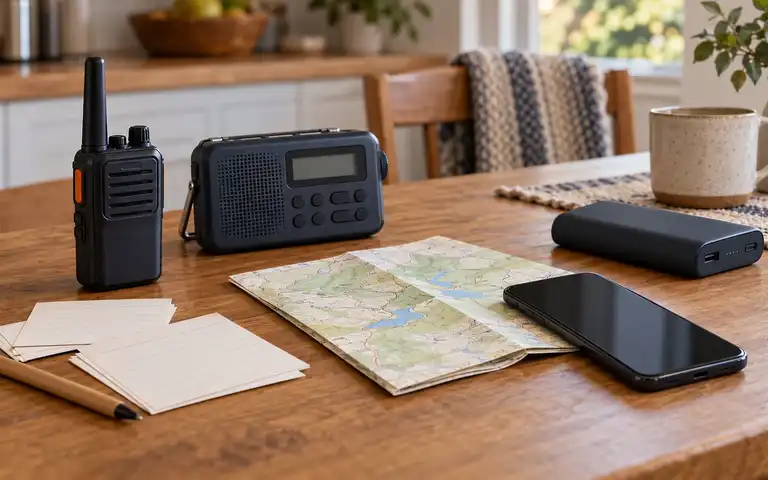
During an ordinary-day test, remove utility power using the equipment’s normal procedure and confirm which services remain. Powering only the gateway may leave another provider box or a necessary switch off. Powering every node may waste the reserve. Keep the no-internet communication stack available for the moment the provider network fails.
When power has returned but internet has not, use the post-outage connection checklist to separate a provider delay from a modem, router, or mesh issue before changing coverage hardware.
For a device-by-device record of which automations and controls still work when internet is unavailable, use the smart-home offline-control audit.
For the connected devices attached to that network, the smart-device support checklist records update sources and what may change if an app or cloud service ends.
A practical acceptance test
After setup, test with the phones, laptops, and other devices the household actually relies on. The useful result is whether the real device can complete the real task in the room where it will be used.
- Required rooms complete the intended call, alert, or work task
- Roaming between nodes does not interrupt the critical task
- Wired devices and backhaul links negotiate as expected
- Guest or IoT separation works as documented
- Administration requires protected account access
- Firmware is current and the update method is recorded
- Provider, gateway, switch, and necessary nodes are in the power inventory
- The network’s no-internet and no-power behavior is understood
- Another household member can find the recovery instructions
If a result is poor, change one variable at a time: node placement, wired path, channel behavior exposed by the system, or number of nodes. Retest the same task before changing hardware.
Mesh Wi-Fi planning FAQ
- How many mesh Wi-Fi nodes does a large home need?
- There is no reliable nodes-per-square-foot rule. Start with the main gateway and one well-placed node, test the rooms and tasks that matter, and add another only when the measured gap remains.
- Is wired backhaul better for mesh Wi-Fi?
- It often gives a more stable node-to-node path when supported and safely installed. Confirm the exact model's Ethernet backhaul behavior, port speeds, cable route, and switch compatibility.
- Will mesh Wi-Fi work during a power outage?
- Only if the required provider equipment, gateway, switches, and nodes remain powered and the provider network is still operating. Measure the complete load and keep an internet-free communication fallback.
- What matters more than a mesh system's maximum speed?
- Stable performance for the real task, backhaul quality, safe placement, security-update support, account protection, local behavior during an internet outage, and an understandable recovery process matter more than one aggregate speed label.
Primary sources
Measure the weakest room before adding a node
Use the room map and acceptance test above to locate a persistent gap. Change one variable at a time, and add a node only when the measured gap remains.